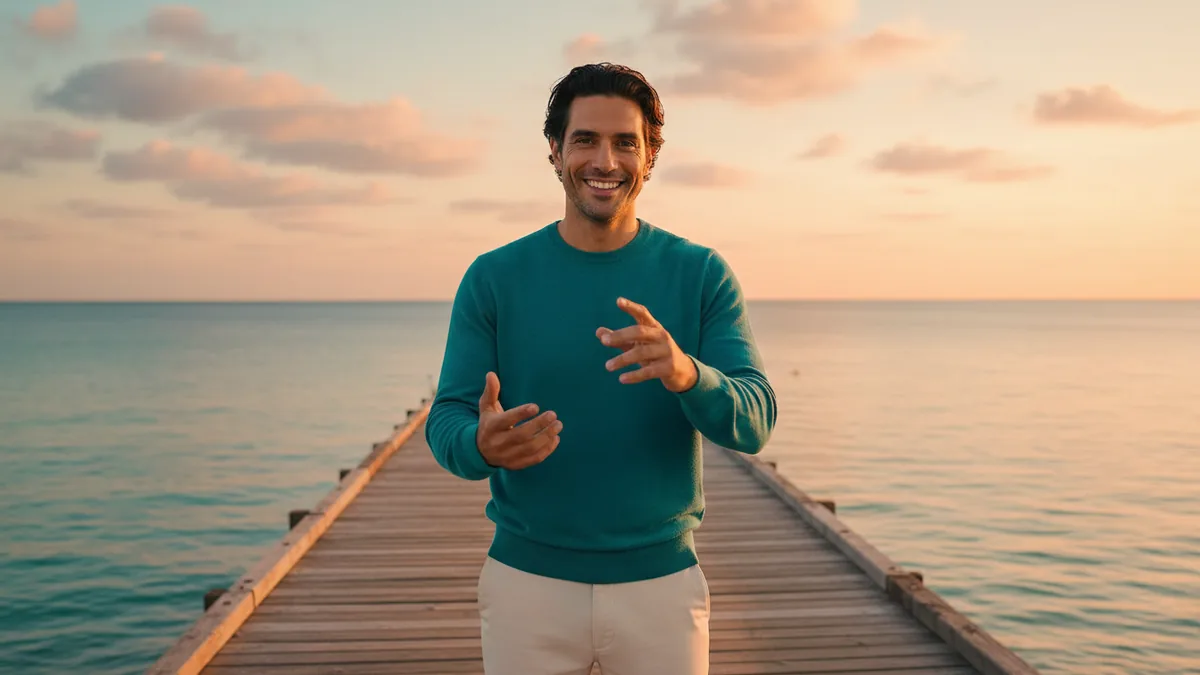
The RainDance AI Video Generator animates exactly one prepared sunset pier image into an original coastal visual performance. It starts with Kling 3.0 image-to-video; other compatible models may be available, and audio follows the selected model and settings. The visual direction is written as a quiet starting point, but the result is not guaranteed to be silent. If you have one or two adult portrait references instead of a prepared frame, use Prepare a Sunset Pier Frame first, inspect the still, and upload it manually into the video tool. Preparing the image and generating the video are separate jobs.
These suggested prompts are not examples of tested outputs; use them as editable starting directions.
1. Start with the right frame
The video step needs one image with the sunset pier composition already in place. The helper can create a fully clothed coastal frame from one or two permitted adult portrait references, but it does not automatically launch the second job. Check the people, clothing, horizon, pier lines, and golden light in the helper result before carrying it into the video workflow.
2. Direct one visible movement
Use the details field for a simple action and camera instruction: “The performer turns gently toward the sunset while a slow camera drift follows the pier; keep the teal sweater, warm backlight, and coastal breeze consistent.” One movement gives Kling a clear target. You can change the gesture, camera direction, or light in a later attempt instead of rewriting every part of the shot.
Audio follows the selected model and settings, so do not treat the quiet visual direction as a silent-output guarantee. There is no need to upload music; review the generated audio and add or replace it later in your own editor if it belongs in the finished project. Keep the visual performance original: do not request a named artist, an existing song, lyrics, voice cloning, or exact lip-sync timing.
3. Read the current quote
Confirm that the generator shows one prepared image and the selected image-to-video model. Kling 3.0 is the default; compatible choices may be available. Review the selected audio settings and the exact credit quote beside Generate before submitting. The optional frame helper has its own current quote, and using it does not bundle the two jobs together. Existing account, moderation, credit, and refund rules apply.
4. Review the motion
Watch the faces, clothing, number of performers, pier geometry, camera drift, and ending composition. A reference image anchors the shot but does not guarantee frame-perfect identity or motion. If the result wanders, simplify the prompt and make the camera instruction more specific. If the still itself is wrong, return to the helper rather than trying to repair every detail in the video prompt.
For general reference animation, read the Image to Video workflow and the AI video prompt guide. The prompt library is another source of editable directions.