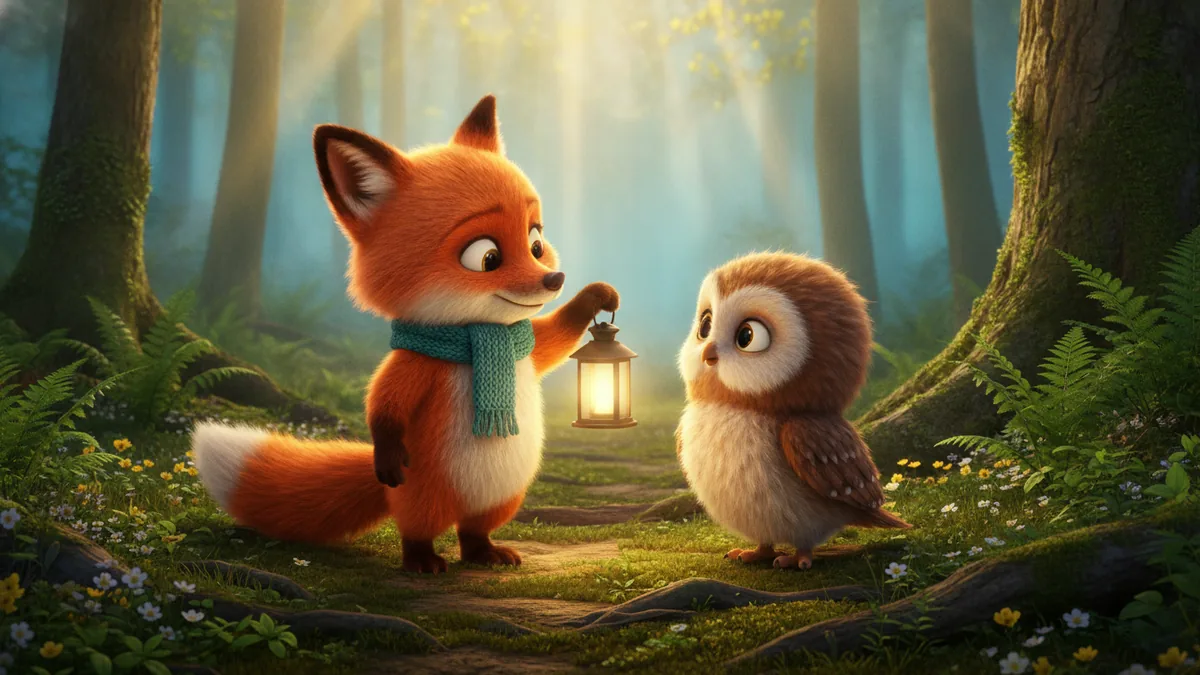
The AI Animated Story Generator creates one short animated narrative clip from text. Start with a small event that can be understood in one scene. A long plot with several locations, a large cast, and many cuts is a different production task.
1. Pick a single story beat
Write down four things: who appears, what they do, where it happens, and how the moment ends. For example, a little robot finds a seed in a quiet greenhouse, plants it, and watches the first leaf emerge.
Keep the action visible. An abstract instruction such as “the robot learns hope” leaves the model to invent the whole scene; “the robot plants a seed and smiles as a leaf appears” gives it something to show.
2. Enter a concise scene description
The tool applies an animated narrative brief to your details. A starting prompt could be:
A small friendly robot in a quiet greenhouse plants a single seed. A tiny green leaf unfolds as the robot leans closer. Soft morning light, a steady medium shot, rounded storybook animation.
This is a prompt idea, not a tested output. One action and one camera direction give you a clearer result to assess than a list of competing styles and transitions. Read the video prompt guide for more writing examples.
3. Choose settings and review the quote
The workflow starts with Kling 3.0. Other compatible text-to-video models may be available, so check the selected model before generating. Choose the available duration and aspect ratio for your intended placement. A vertical frame may suit a phone feed; a landscape frame may suit a wider presentation. These settings do not publish the result to any social platform.
Audio is optional. If enabled, describe a simple ambience or a short sound cue, and review what the model actually produces. The tool does not promise a full narrated script, subtitle track, or exact voice performance.
Sign in and check the exact credit quote before generating. Moderation and the current credit and refund rules apply to this request.
4. Review before making another clip
Check whether the subject stays recognizable, the action reads clearly, and the ending appears. For a weak result, first remove unnecessary actions or simplify the background. If the framing is wrong, change the camera instruction rather than adding more adjectives.
This page does not create an automatically edited sequence of shots. If your project needs several scenes, generate and review each separately and assemble them in an editor. Character continuity across separate generations and exact timing remain things you need to check.
Continue from a reference
Use Image to Video when you already have a still that defines the composition. Explore Use Cases for more starting points, browse Effects for specialized templates, or open the prompt library for attributed creator references and reusable directions.