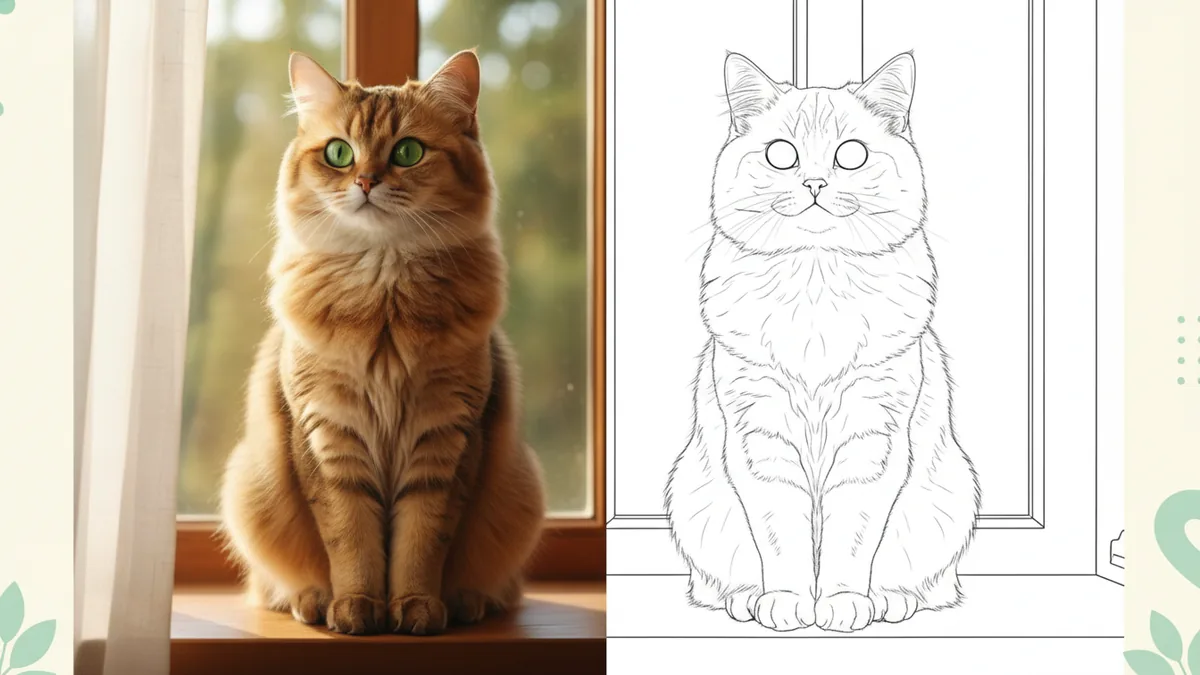
A pet portrait, a family snapshot, or a picture of a favorite place can become a coloring activity. The useful result is an outline with enough open space to color, rather than a grayscale copy of the original photo. This guide explains the controls in the Photo to Coloring Page tool.
1. Choose one clear photo
Upload an image you have permission to use. Start with one recognizable subject and a background that does not compete with it. Fur, leaves, patterned clothing, and crowds can turn into many small outlines; a simple composition is easier to refine.
The tool takes one reference image. It creates a new raster image from that reference, so small details and shapes can change. If an exact drawing matters, review the result carefully before using it.
2. Describe the line treatment
The tool already applies a coloring-page brief. Use the optional details field to explain what you want to simplify rather than repeating the entire scene.
For a simple activity, try:
Large open areas to color, clear black outlines, simplify the background, retain the main subject's recognizable shape.
For a more detailed drawing, try:
Preserve the main contours and a few important texture details, leave enclosed shapes open, use a plain white background.
These are starting prompts, not examples of tested outputs. Dense source images may still need another attempt with fewer details.
3. Check the quote and generate
Sign in, review the selected settings, and check the credit quote beside Generate before submitting. Your reference image, prompt, and result remain subject to the site's content rules. See Pricing and the Refund policy for current terms rather than assuming every rejected request is refunded.
Review the downloaded image at the size you plan to print. Look for broken outlines, tiny shapes, and heavy filled areas. If the result is too busy, change one instruction—for example, ask for fewer background details—before trying again.
4. Prepare the image for printing
The download is an image file, not a vector drawing or a ready-made PDF. Open it in your print application, set your paper size and margins, and use the print preview to check whether any edges will be cut off. A generated outline can be useful for an activity without being suitable for a large print.
Choose the next tool
Use Image to Image when you want a different transformation with your own instructions. Browse image and video tools, choose a project in Use Cases, or read the animated story guide to turn a simple idea into a short narrative clip.